

Keeping Power Automate Connections Alive

As a Citizen Developer or Champion on the Power Platform, you are aware that the connections are the lifeblood of Power Automate. They enable your flows to interact with SharePoint, Outlook, Dataverse, and numerous other services. But if you’ve worked with Power Automate long enough, you’ve probably seen this dreaded message: “Your connection is not authenticated. Please sign in again.”
Why Do Power Automate Connections Disconnect?
As mentioned in the Microsoft documentation, "Troubleshoot broken connections in Microsoft Power Platform", there are a couple of reasons why the Power Automate connections stop working, even if you didn’t change anything:
- Password changes or expirations: password expired or user forgot their password and needs to renew it
- Enable / Disable MFA: Changing the security settings can require reauthentication on existing sessions
- Token expiration (due to inactivity): Some connectors (like SharePoint) require activity at least once every 90 days. If unused, the refresh token expires.
- Microsoft Entra ID policy changes: Conditional Access, MFA requirements, or security updates can invalidate existing tokens.
- Account disabled or deleted: if the solution is using a user account that was disabled or left the company
- Tenant or admin actions: DLP, licensing, disable applications, ...
- Timeout or network issues
What are the solutions to avoid disconnect?
Short answer: It is not possible to enforce a persistent connection 🤯
You can avoid disconnection by following some basic prerequisites:
- Using a service account with a password that never expires (except for Dataverse, using a Service Principal is not supported by the most common connectors)
- Configure the maximum token lifetime (90 days)
- Ensure activity with the connectors that are using the connections
- Configure a DLP for these accounts so that they are not impacted by the organization's security policies
None of this information can avoid a disconnection. Even if we cannot avoid it, we can monitor the connections and be aware when a connection is disconnected, and prevent disconnections based on the last connection and the token lifetime. This is the subject of this blog post: provide a solution to monitor your connections.
An agent to monitor your connections
In this case, the definition of an agent is:
A lightweight Power Platform solution (flows, apps, or components) installed in an environment that runs on a schedule or trigger to check the health of connections and report their status to a central location (like a SharePoint list).
- Embedded: It lives inside the same environment as the flows and connections it monitors
- Autonomous: It runs automatically without manual intervention (e.g., daily) to query the list of connections
- Observer role: It doesn't fix the connection, but it allows reporting the statement of the valid connections, expired, or requiring reauthentication
- Reporter: sends the information (e.g., connection name, owner, status, last modified date, etc.) to a centralized "database" (e.g., SharePoint list)
- Extensible: The agent can do more than just monitor connections (e.g., environment version, custom connectors, networking, etc.)
This solution can be a complement to the CoE Starter Kit and should not replace it. It is a solution that provides a proactive visibility on specific information.
Here, the final result of the agent that pushes formatted information into a SharePoint list:
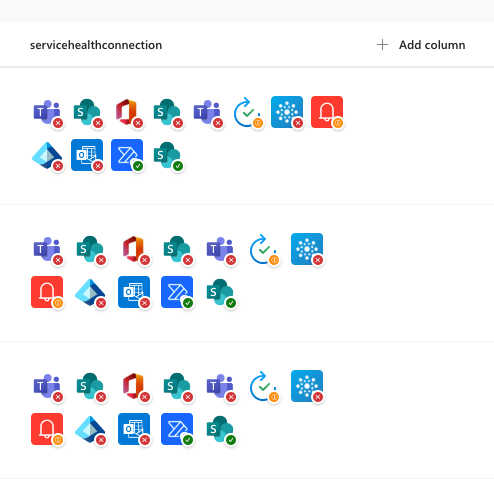
- Display the icon of the connection type
- Display a badge that matches the connection status (connected, connected for more than 80 days, disconnected)
- Each icon is clickable and opens the detail page of the connection to facilitate the reauthentication
Here is how the flow is working:

Are you in a hurry to create this agent in your environment? Let's go 🤓
Create the Agent
SharePoint list
SharePoint can be a good choice to store the connection status:
- Easy to use
- Easy to configure
- No need for a premium connector
- No need to create an interface (use SharePoint list view)
In this simplified case, the only thing you need is:
- A SharePoint site (e.g., /sites/msnd)
- Create a SharePoint list (e.g., servicehealth)
- Add a list column
- Internal name: servicehealthconnectionhtml
- Type: Multiple lines of text
- Required: No
- Enhanced rich text: Enabled
- Append Changes: Disabled
Power Automate
It is not required, but I recommend to create a Power Platform solution that will contain the Power Automate Flow.
Here's the step-by-step process:
- From Power Platform, create a new Scheduled Cloud Flow
- Name:
healthservice - Frequence: 1 per days at 6 AM for example
- Name:
- Add a "Initialize Variable" action:
- Name:
ConnectionString - Type:
String - Value: (leave empty)
- Name:
- Add a "List My Connections / Power Automate Management" action:
- Environment: (select your environment)
- Add a "For each" condition:
- Action:
outputs('List My Connections')?['body/value']
- Action:
- Add into the foreach a "Append to string variable" action:
- Name:
ConnectionString - Value (copy/paste directly the HTML):
<div style="position:relative;width:32px;height:32px;display:inline-block;margin:4px;">
      <a href="https://make.powerapps.com/environments/@{items('For_each')?['properties']?['environment']?['name']}/connections/@{last(split(items('For_each')?['properties']?['apiId'],'/'))}/@{items('For_each')?['name']}/details" target="_blank" alt="@{items('For_each')?['properties']?['lastModifiedTime']}">
          <img src="@{items('For_each')?['properties']?['iconUri']}" title="@{items('For_each')?['name']}" style="width:32px;height:32px;border-radius:4px;object-fit:contain;">
          <span style="position:absolute;bottom:-2px;right:-2px;width:10px;height:10px;border-radius:50%;background-color:@{if(equals(items('For_each')?['properties']?['statuses']?[0]?['status'], 'Error'), '#d13438', if(and(not(equals(items('For_each')?['properties']?['statuses']?[0]?['status'], 'Error')), greater(div(sub(ticks(utcNow()), ticks(items('For_each')?['properties']?['lastModifiedTime'])), 864000000000), 80)), '#ff8c00', '#107c10'))};display:flex;align-items:center;justify-content:center;border:2px solid white;box-shadow:0 1px 3px rgba(0,0,0,0.3);">
              <span style="color:white;font-size:6px;font-weight:bold;">
                  @{if(equals(items('For_each')?['properties']?['statuses']?[0]?['status'], 'Error'), '✕', if(and(not(equals(items('For_each')?['properties']?['statuses']?[0]?['status'], 'Error')), greater(div(sub(ticks(utcNow()), ticks(items('For_each')?['properties']?['lastModifiedTime'])), 864000000000), 80)), 'ⓘ', '✓'))}
              </span>
          </span>
      </a>
</div>
Rather than creating an HTML body, I already try to use the SharePoint column JSON format, but the JSON is to complex to be used directly into a SharePoint field.
- Name:
- After the foreach, add a "Create item" action:
- Site Address:
https://contoso.sharepoint.com/sites/msnd - List Name:
servicehealth - servicehealthconnection:
@{variables('ConnectionString')}
- Site Address:
- Click Save
Your workflow should look like:
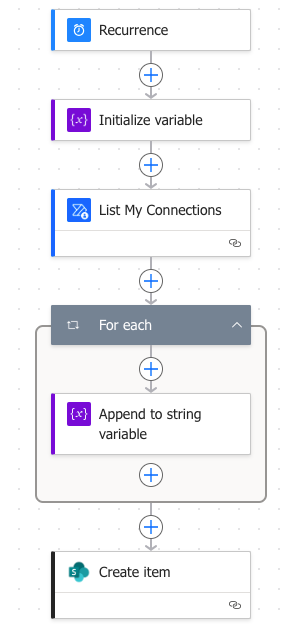
Test your workflow and enjoy the result ✅
Explanations
Rather than creating an HTML body, I already tried to use the SharePoint column JSON format, but the JSON is too complex to be used directly in a SharePoint field.
The current simplified flow does not require any premium or admin account.
Next steps
- Use the "List My Environments" action first to determine the current one. Thanks to this, you don't have to edit the flow into each targeted environment.
- Use the "Get Connections as Admin" (Power Apps for Admins) instead of "List My Connections" to retrieve ALL connections, including established ones with another account.
You will not be limited to the current user context, but this action requires an account with the Power Platform admin role. - Add additional monitoring controls to check networking, errors, etc.
Connections will always be fragile, but with a simple monitoring agent, you can stay ahead of failures and keep your automations alive. How are you monitoring your connections today?
If you try this agent, let me know how it works in your environment ❤️
Hoping this post will help you 🚀
You may also be interested in