Create SharePoint Page from Power Automate without Graph API

Microsoft is still implementing new capabilities to Microsoft Graph API - Microsoft Graph API is a standard.
In some cases, Microsoft Graph API cannot be used because of:
- Lack of capabilities
- Organizational governance can sometimes be too complicated for a simple use case
- permissions too large (not enough scoped for security)
- In Power Automate, using Microsoft Graph connector often requires a Premium license. This can be a blocker for simple use cases.
If you are looking for full documentation and still stuck to the standard, you should use Microsoft Graph API as much as possible.
For this use case, to manage a SharePoint page, Microsoft Graph API provides an API to do this. We recommend using it except for the reason above or other reasons.
So yes, you can create modern Site Pages with the SharePoint REST "SitePages" API without Microsoft Graph API.
[success] Tip
At the date of this blog post, SharePoint is not using Graph API to create page - SharePoint is using his own API.
| Key point | Microsoft Graph API | SharePoint API |
|---|---|---|
| Permissions | Requires Entra App registration & Tenant consent | Using existing SharePoint API with account context permissions |
| Complexity | Medium (regarding on org governance) | Low - just reuse API |
| Governance | Harder to audit and approvals | Easier and align with the SharePoint site level permissions |
| Documentation | Microsoft and community documentation | Limited documentation |
| Power Automate compatibility | HTTP Request Premium action (HTTP With Microsoft Entra ID or HTTP) | Send an HTTP Request to SharePoint (free) |
[Note] Note
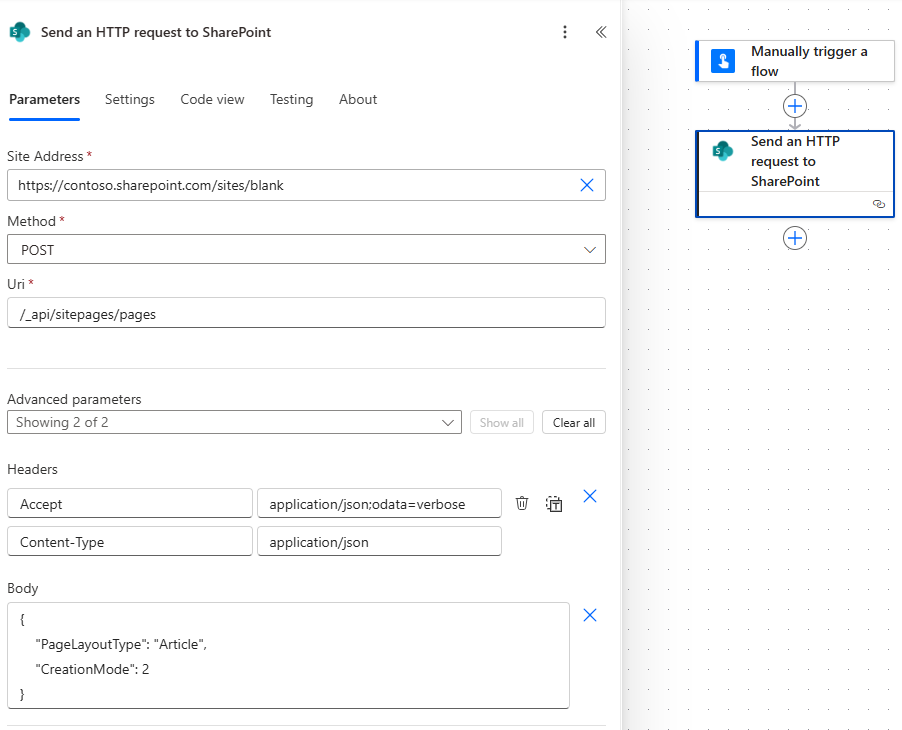
All the following request examples where performed with the Power Automate "Send a SharePoint HTTP request" connector.
Create Page
Endpoint
POST /_api/sitepages/pagesCreate SP page API
Headers
Accept: application/json;odata=verbose
Content-Type: application/json;odata=verbose
Create SP page header
Body (minimal)
{
    "__metadata": {
    	"type": "SP.Publishing.SitePage"
    },
    "PageLayoutType": "Article",
    "PromotedState": 0
}
Create SP page body
PageLayoutType: one of Article, Home, SingleWebPartAppPage. (These are the three modern layouts.)PromotedState: 0 = regular page, 1 = news (draft), 2 = published news post. (You can also promote with a separate action)- The '__metadata.type' must be 'SP.Publishing.SitePage' for modern pages.
[note] Note
You mentioned using{ "PageLayoutType": "Article", "CreationMode": 2 }.
CreationMode isn’t documented publicly for Site Pages and isn’t required —many implementations omit it and rely onPageLayoutType/PromotedState+SavePage/Publishcalls.
Edit Page
After creation, the response contains the page Id. Use it to save content:
Endpoint
POST /_api/sitepages/pages({Id})/SavePageEdit SP page API
[note] Note
UseSavePageAsDraftif you prefer to keep it as a draft first.
Body (typical)
{
    "__metadata": {
        "type": "SP.Publishing.SitePage"},  // Title area (a.k.a. page header)
        "LayoutWebpartsContent": "[{ \"id\":\"cbe7b0a9-3504-44dd-a3a3-0e5cacd07788\", \"properties\": { \"title\": \"My Title\", \"imageSourceType\": 2, \"layoutType\":\"CutInShape\" }, \"serverProcessedContent\": { \"imageSources\": { \"imageSource\": \"/sites/contoso/SiteAssets/SitePages/banner.png\" } } }]",  // Main canvas (controls + web parts)
        "CanvasContent1": "[{ \"controlType\":4, \"innerHTML\":\"<h2>Hello</h2><p>Welcome!</p>\", \"position\": { \"zoneIndex\":1, \"sectionIndex\":1, \"controlIndex\":1, \"sectionFactor\":12, \"layoutIndex\":1 } }]",  // Common fields  "Title": "My Title",  "TopicHeader": "Topic",  "AuthorByline": [],
        "BannerImageUrl": "/sites/contoso/SiteAssets/SitePages/banner.png"
}
Edit SP page body
- This is the exact pattern Microsoft’s page editor uses under the hood. The most reliable way to build these payloads is to create a sample page in the UI, hit Save as draft, and capture the SavePage or SavePageAsDraft request payload in your browser dev tools, then reuse/adapt it.
CanvasContent1is the JSON serialized structures representing of control/web‑part for the page body. You can update it viaSavePage/SavePageAsDraft.LayoutWebpartsContentconfigures the Title Area (banner/header).- You can also set
BannerImageUrl(some flows do), but updates to the title area are most consistent throughLayoutWebpartsContent.
[note] Note
If you try changingBannerImageUrlthrough the list item route you’ll likely hit “parameter does not exist” type errors—stick to the SitePages API.
[success] Tip
Tip on headers: usingapplication/json;odata=verboseand includingX-RequestDigestavoids common__metadata/deserialization errors in SharePoint Online.
Publish age
POST /_api/sitepages/pages({Id})/publishPublish SP page API
(Body can be just the __metadata object) - This publishes the latest version of the page.
Promote to News (optional)
You can either set PromotedState: 2 when saving/publishing (news & published) or calling the explicit action:
POST /_api/SitePages/Pages({Id})/PromoteToNewsPromote SP page as news API
[note] Note
The page must be published before to be promoted as news.
“All the payload options” you’ll most likely care about
There isn’t a single canonical doc listing every property you can post with /_api/sitepages/pages.
In practice, the payload is a mix of:
- The fields on the Site Pages list item
- Title
- Description
- BannerImageUrl
- TopicHeader
- PromotedState
- PageLayoutsType
- etc.
- Modern page models (editor serialization)
- CanvasContent1
- LayoutWebPartsContent
- etc.
Frequently used properties at create/save time
- PageLayoutType
- Article
- Home
- SingleWebPartAppPage
- PromotedState
- 0: regular page
- 1: news (unpublished)
- 2: news (published)
- Title: page title (page by default)
- Description
- TopicHeader
- AuthorByline
- BannerImageUrl
- CanvasContent1: contains sections, columns, web parts
- LayoutWebpartsContent: this is the header schema
- image layout type
- gradient
- authors display
- etc.
Other properties you’ll see in responses (not all are settable)
- AbsoluteUrl ?
- FileName
- Path.DecodedUrl ?
- Id ?
- UniqueId ?
- Version
- VersionInfo ?
- IsPageCheckedOutToCurrentUser ?
- FirstPublished ?
- IsWebWelcomePage
- etc. (GET page will show you all metadata)
GET /_api/sitepages/pages({Id})Get SP page metadata
Useful operations you’ll likely need
- Check out:
POST /_api/SitePages/Pages({Id})/CheckoutPage - Save draft:
POST /_api/SitePages/Pages({Id})/SavePageAsDraft - Publish:
POST /_api/SitePages/Pages({Id})/publish - Promote to news:
POST /_api/SitePages/Pages({Id})/PromoteToNews
Hoping this post will help you 🚀
You may also be interested in