
Manage Mail-Contacts from Power Automate

You are a system administrator, a developer, security system, or someone interesting in the identity management into Microsoft 365, and you need more information about the Microsoft contacts, this post can afford you some inputs.
Among the different identity management, there is still another kind of user information in Microsoft 365. You basically have:
- Members: standard user accounts generally assigned a Microsoft 365 license
- Guests: external users of the organization (Work & School, Live, Gmail, etc.)

You have another kind of users information: contacts and mail contacts.
Compared to the Members and Guests, the contacts cannot sign in into your environment and no role or permission can be assigned to them.
The contacts are not accessible from Entra ID and they are mail-enabled objects that contain information about people who exist outside your organization; they can be managed only from Microsoft Exchange.
- Contacts: are managed by the users from their Outlook (Exchange) accounts. The contacts are personal and can be shared to colleagues.
- Mail-contacts: are managed by the Exchange administrator. They can be managed only from the admin interfaces (Admin Center and Exchange Admin Center - EAC) or PowerShell.
A significant difference between the user contacts (user mailbox) can be managed via Outlook and Microsoft Graph API. Mail-contacts, however, cannot be managed this way.
There is not really a choice here. If you want to maintain for your whole organization a contact list you can:
- create a script to update a Shared Contact list - the list must be shared to all users (Members).
- create a script to create a list and update the contacts into all mailboxes of your Tenant.
- create mail-contacts into your Exchange instance and visible from the Global Address List (GAL)
The two first methods and not recommended; the script can become complex challenge to maintain and it can take a lot of time to update the contacts list. These methods are conceivable only if you want to shared some contacts to specific people in your organization.
Shared Contact Lists are not scalable for enterprise scenarios.
The third method is more appropriate for whole of your organization (Tenant) because is simpler and more maintainable over time.
The two first method are quite easy to implement because you have Microsoft Graph API, that is not the case for the mail-contacts. This is where this post adds value.
You can use PowerShell to automate the actions. The downside is that you’ll need to script and create a runner somewhere (Windows tasks, Azure Function, any kind of solution that support PowerShell).
In this post, we will use Exchange Admin API to use Power Automate directly 🚀
Connector
[warning] Warning
Exchange API does not work with the HTTP Request with Entra (preauthorized).
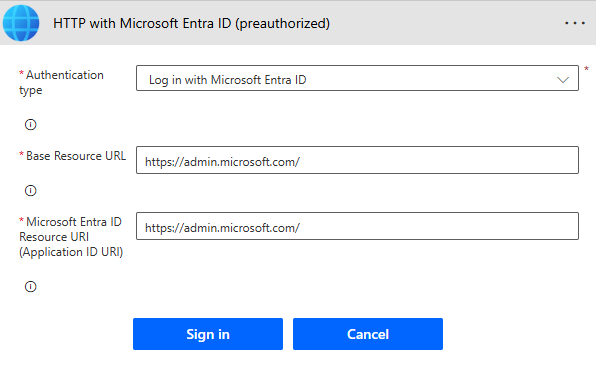
To be able to use it for the mail-contacts context, you will need to define the origin URL:https://admin.microsoft.com/
[Note] Note
The new Microsoft URL does not work yet:https://admin.cloud.microsoft/
API
Get Contacts
POST https://admin.microsoft.com/admin/api/Contact/GetContacts

Body
{
    "SearchString": "",
    "NextLink": ""
}
[Note] Note
TheSearchStringproperty is not a full text search - it has the same behavior thanstartWith().
The search is based on Contact Name or Email properties.
New Contact
POST https://admin.microsoft.com/admin/api/Contact

Body
{
    "ContactLastName": "Doe",
    "ContactExternalEmailAddress": "[email protected]",
    "ContactWebPage": "https://contoso.com",
    "ContactMailTip": "Johnny",
    "ContactMobilePhone": "",
    "ContactHiddenFromAddressListsEnabled": true,
    "ContactDisplayName": "John Doe",
    "ContactPhone": "",
    "ContactTitle": "Sale",
    "ContactFirstName": "John",
    "selected": false,
    "ContactCompany": "Contoso",
    "ContactFax": ""
}
In this case, some properties such as Company, or Hidden From Address List didn't work during the creation.
But, after using the update API, it was possible to change these information.
Update Contact Information (General)
PUT https://admin.microsoft.com/admin/api/Contact

Body
{
    "ContactStreetAddress2": null,
    "ContactLastName": "LastName",
    "ContactStreetAddress3": null,
    "ContactExternalEmailAddress": "[email protected]",
    "ContactWebPage": "https://contoso.com",
    "ContactDomain": null,
    "ContactStateOrProvince": "",
    "ContactMailTip": null,
    "ContactEmailAddresses": null,
    "ContactCity": "",
    "ContactName": "FullName",
    "ContactMobilePhone": "",
    "ContactHiddenFromAddressListsEnabled": false,
    "ContactCountryOrRegion": {
        "DisplayName": "",
        "LocalizedDisplayName": ""
    },
    "ContactPhoneticDisplayName": null,
    "ContactDisplayName": "FullName",
    "ContactPhone": "",
    "ContactInitials": null,
    "ContactAlias": null,
    "ContactStreetAddress": "",
    "ShowLastNameFirst": false,
    "ContactDepartment": null,
    "ContactSmtp": null,
    "ContactPostalCode": "",
    "ContactTitle": "Job Title",
    "ContactSimpleDisplayName": null,
    "ContactId": "d4c0b5aa-d484-4e5a-ae89-1b13afc7a86a",
    "ContactFirstName": "FirstName",
    "selected": false,
    "ContactOffice": null,
    "ContactCompany": "Contoso",
    "IsDirSynced": false,
    "ContactFax": "",
    "EditExchangeSettingsUrl": "https://admin.exchange.microsoft.com/?landingpage=contacts/:/ContactDetails/mailContact/d4c0b5aa-d484-4e5a-ae89-1b13afc7a86a&form=mac_sidebar",
    "ShowZipCodeFirst": false
}
Note that the following properties are really important:
- ContactId
- EditExchangeSettingsUrl
Update Contact Settings
PUT https://admin.microsoft.com/admin/api/Contact/options

Body
{
    "ContactStreetAddress2": null,
    "ContactLastName": "Doe",
    "ContactStreetAddress3": null,
    "ContactExternalEmailAddress": "[email protected]",
    "ContactWebPage": "",
    "ContactDomain": null,
    "ContactStateOrProvince": "",
    "ContactMailTip": "Johnny",
    "ContactEmailAddresses": null,
    "ContactCity": "",
    "ContactName": "John Doe",
    "ContactMobilePhone": "",
    "ContactHiddenFromAddressListsEnabled": true,
    "ContactCountryOrRegion": {
        "DisplayName": "",
        "LocalizedDisplayName": ""
    },
    "ContactPhoneticDisplayName": null,
    "ContactDisplayName": "John Doe",
    "ContactPhone": "",
    "ContactInitials": null,
    "ContactAlias": null,
    "ContactStreetAddress": "",
    "ShowLastNameFirst": false,
    "ContactDepartment": null,
    "ContactSmtp": null,
    "ContactPostalCode": "",
    "ContactTitle": "",
    "ContactSimpleDisplayName": null,
    "ContactId": "fe1ef0a3-ca7f-404a-af18-b91695e15519",
    "ContactFirstName": "John",
    "selected": false,
    "ContactOffice": null,
    "ContactCompany": "",
    "IsDirSynced": false,
    "ContactFax": "",
    "EditExchangeSettingsUrl": "https://admin.exchange.microsoft.com/?landingpage=contacts/:/ContactDetails/mailContact/fe1ef0a3-ca7f-404a-af18-b91695e15519&form=mac_sidebar",
    "ShowZipCodeFirst": false
}
Hoping this post will help you 🚀
You may also be interested in